Towards a More Human Centered Computing Experience
I find it incredibly unfortunate that a majority of computer users do not have a personalized computing experience. Of course this makes sense as most computer users are (probably) simply office workers reading/writing emails, documentation, and spread sheets. Considering the amount of time spent interfacing with computers and executing these tasks though, the computing environment manufacturers don’t seem to care very much about the quality of tools they producing, but neither do the computer users either. I’m assuming (and partially hoping) that that’s simply because they don’t even know about other options.
Broadly what I am talking about is the ergonomics and human friendliness of computing environments whether it be your desk setup at home, work station, or laptop on the couch. I think this is something not talked about or considered enough even though we are spending more and more time every day on our computers. In this article I’d like to roughly walk through all of the choices and considerations I’ve made when choosing hardware and software configurations for my computing environment both at home on my desk and on the go with my laptop. By no means is this a guide for everyone to follow. The idea is to give you a bit of an idea as to how I made these choices such that you can personalize and tailor your computing environment to your own needs. I’ll be walking through hardware choices first, then software.
Monitor
Your computer monitor is arguably the most important thing you can invest in for your setup as it is literally what you are staring at for 8 hours a day. Here are my recommendations/preferred specs:
- A 27 inch monitor with highest resolution possible (I have a 4k)
- Keep a distance of about 50-80cm between your eyes and your display
- The top of your monitor should be level or slightly above your eye line (this is to keep you looking straight or slightly upwards)
Pixels per inch (PPI) is what you should be optimizing for when choosing a monitor. Your eyes can see every single LED and are irritated by every single LED.
Keyboard+Mouse
Keyboards are a very personal option so I can only explain the reasoning behind my choices. I think the obvious first step is to switch to a split keyboard. Having a natural straight line from your shoulder to your finger tips (along your wrist) is important over long periods of typing. On a normal keyboard, your wrists have to be bent outwards while your arms are actually bending inwards so that both hands can use the keyboard at the same time. This has been shown to cause carpal tunnel syndrome and will being making it extremely painful to continue using your computer. Your main goal is to basically remove the outward bend in your wrists. Make sure that the distance between each side of your split keyboard ensures that your forearms are parallel with each other. I use a Zsa Voyager.
As I have a mostly keyboard driven workflow, I just use an old Logitech mouse that I’ve had for ages. If you do a lot of work with the mouse I would recommend a vertical one like this. I’ve tried trackball mice like this as well, but don’t find them very ergonomic.
Desk
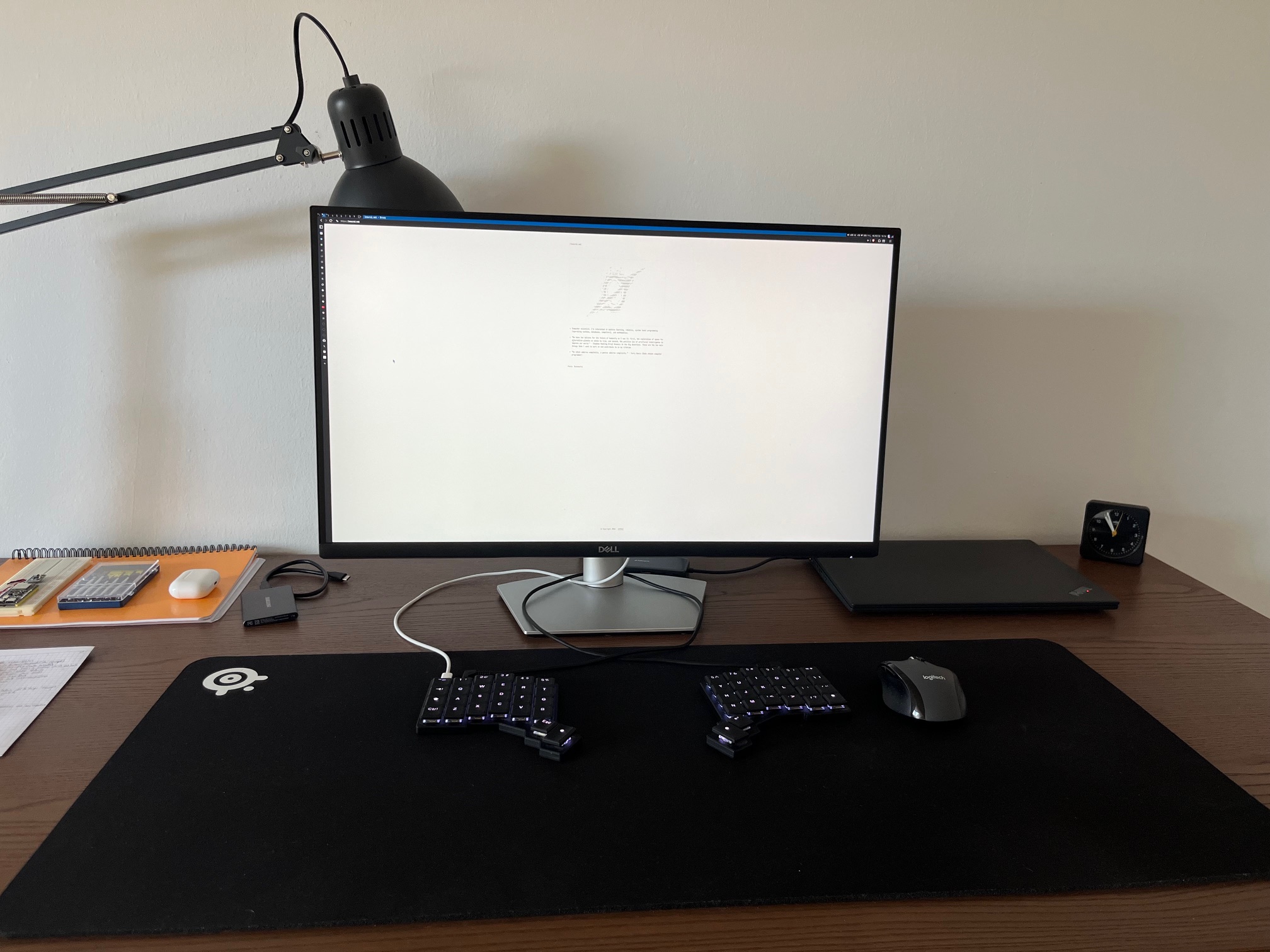
This largely personal taste. I prefer a very large desk that is deep enough such that I can rest my forearms on it while typing. This means I also have to set it to roughly the correct height such that my arms form 90 degree angles at the elbow. Having a well lit desktop is also important. I have a lamp on the left side of my desk as I am right handed (this is best when writing on paper so that your hand doesn’t cast a shadow on what you are writing).
Chair
I actually think this doesn’t matter. You should be able to sit straight up on any kind of chair for long periods of time; it’s simply just a matter of practice/training. That being said I actually switch between a wooden kitchen table chair and an amazon basics office chair throughout the day. In the morning I use the wooden chair as I have the most amount of energy. In the afternoon/evening I use the office chair as I can lean back in it in a bit more of a relaxed way. Just don’t slouch!
My Hardware
- Desk: Some standard Ikea desk
- Monitor: Some Dell 4k 27" monitor
- Laptop: ThinkPad t14s Gen 3 (AMD Ryzen 7 Pro, 32Gb RAM)
- Charger: Anker Nano 2 + Anker 240W 2m cable
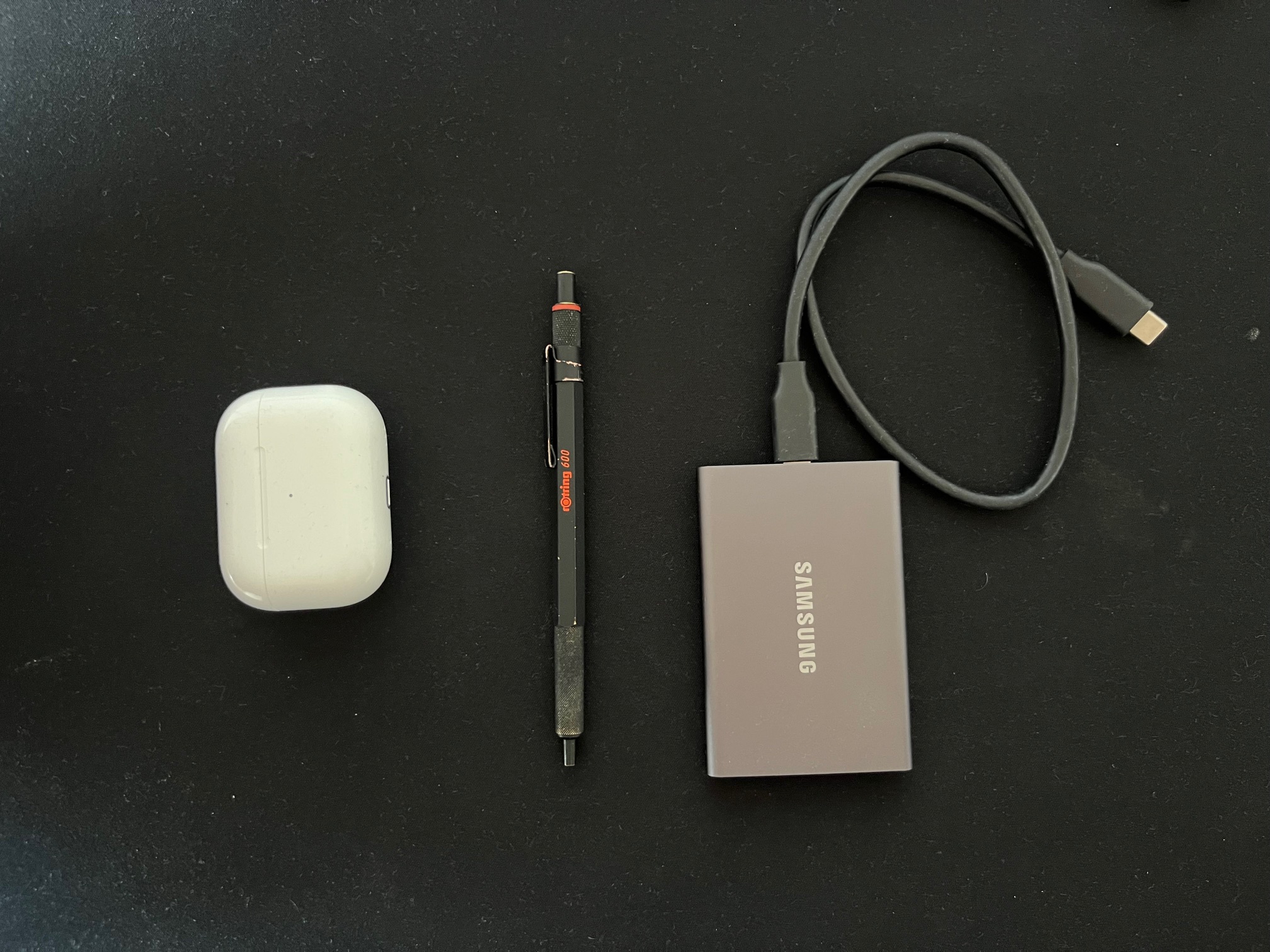
- SSD: Samsung T7 (1Tb)
- Pen: Rotring 600 (with Schmidt P 900 F)
- Clock: Braun Classic Analog Alarm Clock
- Audio: AirPods Pro Gen 2
- Mouse: Logitech M705 Marathon
- Mouse pad: Steel series
- Keyboard: ZSA Voyager
Color Schemes
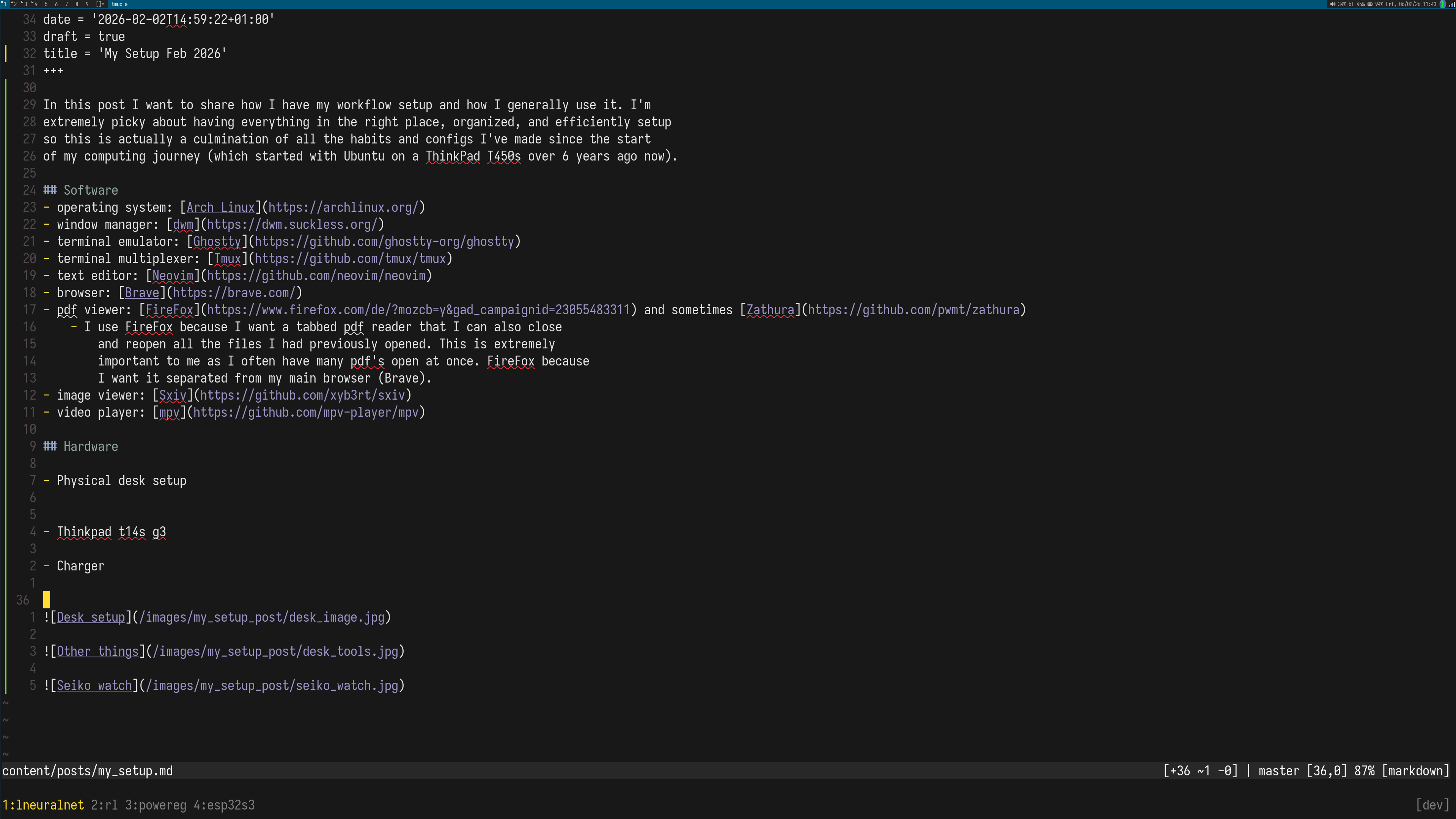
Depending on your surrounding environments light, you want to switch between using dark and light modes. I’ve actually become a pretty big fan of light mode in the last couple weeks and now prefer to work on much more well lit environments with light mode on. I feel its just a more natural way to read and write (dark text on a light background). I personally have a light/dark mode toggling keybind so that I can quickly switch between what feels right in a given environment. In my text editor and terminal I use the modus color scheme when in light mode and the gruber darker color scheme when in dark mode.
I’ve also recently been experimenting with using a gray scale mode when performing tasks like reading papers or doing light research. I can’t give a full conclusion yet as I haven’t been doing this for a while, but in general so far I would say it increases my focus a bit on the task at hand and allows me to focus more easily. I would assume this is because my brain doesn’t have to process any more colors and such, but I couldn’t give you a scientific reason.
Font & Text Size
I use iosevka and sometimes Terminus (TTF). Use what feels most comfortable for you. The important part is only that you use an extremely large font size when reading and editing text. You want to reduce as much strain on your eyes as possible. The worst thing you can be doing is squinting at your computer display. I usually have between 30 and 50 terminal text rows visible at once.
Keyboard Driven Software
Learn and use vim keybinds everywhere. Choose to use software that supports keyboard shortcuts, learn those keyboard shortcuts, and then use those keyboard shortcuts. I cannot stress this enough. There is no reason to move your hand over to your mouse to perform a task you’ve repeated thousands of times already. If you more than just an internet browser and a terminal in your daily workflow, use a tilting window manager and bind your most used applications/actions to keys.
My Software
- Operating system: Arch Linux
- Window manager: dwm
- With systray and actual fullscreen patches.
- I used to use dwm, then switched to default Gnome for about 1.5 yrs and now recently just switched back to dwm. Its pretty much my ideal workflow.
- Terminal emulator: Ghostty
- Terminal multiplexer: Tmux
- Text editor: Neovim
- Browser: Brave
- Pdf viewer: FireFox and sometimes Zathura (for viewing pdfs in dark mode)
- I use FireFox because I want a tabbed pdf reader that I can also close and reopen all the files I had previously opened. This is extremely important to me as I often have many pdf’s open at once. FireFox because I want it separated from my main browser (Brave).
- Image viewer: sxiv
- Video player: mpv
I prefer my window manager and graphical things to be very small and out of the way while the text that I’m reading/editing (either in my browser or terminal) to be very large. I usually sit around ~80cm (estimated) from my monitor and having to only read huge font text on top of that just makes my computing experience that much more pleasant and easier to sit at for longer periods of time.